
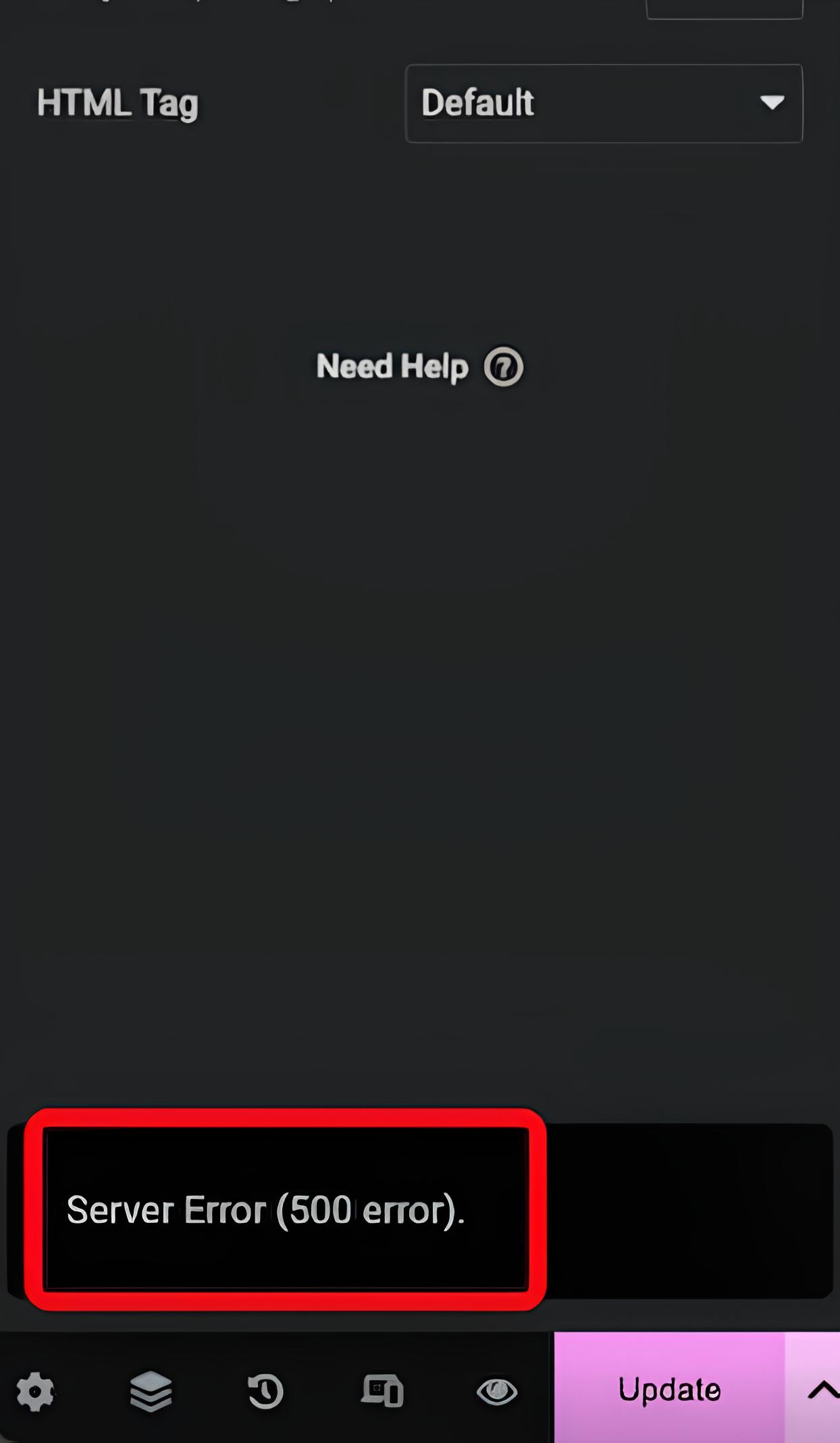
Fix Elementor “Server Error (500 error)” When Saving Posts
What is a 500 error?
A 500 Server Internal Error is an HTTP status that tells the browser something went wrong on the server while trying to handle the request. Unfortunately, this generic error response doesn’t provide any useful information about the root cause.
When this happens while saving an Elementor page or post, it usually indicates an issue with the request using a larger than normal amount of server resources.
Common Cause: Too Many Post Revisions
Excessive post revisions are by far the most frequent cause of a 500 error when saving changes in Elementor.
WordPress automatically saves revisions of posts and pages every time you update them, building up over time. When you try to save the page with too many revisions in Elementor, too much processing needs to be done by the server, which results in a 500 error.
Why Revisions Cause Problems
Each revision is a separate record in your WordPress database. So, if a page is complicated and has gone through numerous edits, the SQL (database) query required to store the current version becomes bloated. This can overload the available memory or server processing capacity.
How to Fix It: Optimize Your Database to Remove Old Revisions
The easiest and most common solution for this problem is to optimize your site’s database, decreasing the number of stored revisions. Two great plugin options to simplify this task are:
WP-Optimize
WP-Optimize offers comprehensive and granular database optimization tools, including cleaning up post revisions with a few clicks.
Steps to Optimize Your Database with WP-Optimize:
Install and activate the plugin from the WordPress Plugin repository.
Go to WP-Optimize > Database from the WordPress dashboard.
Click the Remove revisions option.
Review other cleanup options that may exist, such as auto-draft removals and spam comments, for further cleanup.
Click Run Optimization.
WP Sweep
WP Sweep provides similar functionality for managing and cleaning up unwanted database entries.
How to Use WP Sweep:
Install and activate WP Sweep.
In the WordPress dashboard, go to Tools > Sweep.
Under the “Revisions” section, click Sweep to remove old post revisions.
Optionally, sweep other sections like deleted comments and transients for a deeper clean-up.
Both of these plugins are safe to use and offer a backup option, though it always is a good idea to back up your site manually before making major changes to your database.
Other Possible Causes and Solutions
While too many post revisions are almost always the cause for this error, the 500 error can be due to other underlying issues in some cases.
Server Resource Limits
While you may have encountered this issue on other hosting providers with restricted environments, BionicWP already has server limits set well above Elementor’s recommendations.
Elementor requires adequate server memory to operate, but our server allows each and every PHP request to use up to 512MB (double Elementor’s recommended 256 MB). Any more than that is unnecessary for well-written code.
Some plugins inherently use a lot of memory, in which case a well-written plugin would typically break up larger processes into several PHP requests. Since our server allows sites to burst up to 110 PHP workers to cope with brief surges in resource needs, this means your site has access to up to 55GB of memory if all workers are used.
Because of this, it’s not possible (or necessary) to increase your website memory limit through edits to the wp-config.php file.
More information on PHP limits and considerations at BionicWP can be found here.
Check for Plugin or Theme conflicts.
Conflicts with other plugins or themes can also cause 500 errors. To identify the culprit, you will need to perform a conflict test.
For a detailed walkthrough on how to safely isolate the problematic plugin or theme, please follow our guide on How to Check for Plugin and Theme Conflicts.
Note: Conflict tests should be done on a staging website so it does not impact the live site.
If plugins are ruled out, switch to the default theme like Twenty Twenty-Five to eliminate possible theme conflicts.
Preventing Future Problems
Once you have resolved the 500 error, it is a best practice to implement a few preventative measures to ensure your site remains fast and stable.
Limit Post Revisions: You can prevent your database from bloating again by adding define(‘WP_POST_REVISIONS’, 5); to your wp-config.php file. This ensures WordPress only keeps your five most recent edits, which is more than enough for most workflows.
Schedule Regular Cleanups: Use WP-Optimize or WP Sweep to keep your database from bloating over time.
Reduce Resource Needs: Use lightweight plugins and optimize Elementor pages by keeping designs as simple as possible. Avoiding deeply nested elements will improve both server performance and user experience.
Please do not hesitate to reach out to support for assistance if needed.