
Temporarily Taking Your Site Offline in BionicWP
Disabling a Site
Sometimes you may want to temporarily take your site offline without deleting it. BionicWP lets you disable sites in your account, keeping all files and data intact. This feature can be helpful if you no longer want your site publicly accessible for a temporary period.
Additionally, the site will still count toward your billing.
Step-by-Step Instructions:
Navigate to https://app.bionicwp.com/ and log in.
Click on Sites in the left navigation menu.
From the sites list, select the site you want to disable
Inside your selected site, click on the Advanced tab at the top.
Scroll until you find the Site Control section.
Toggle the "Site Status" button to disable the site
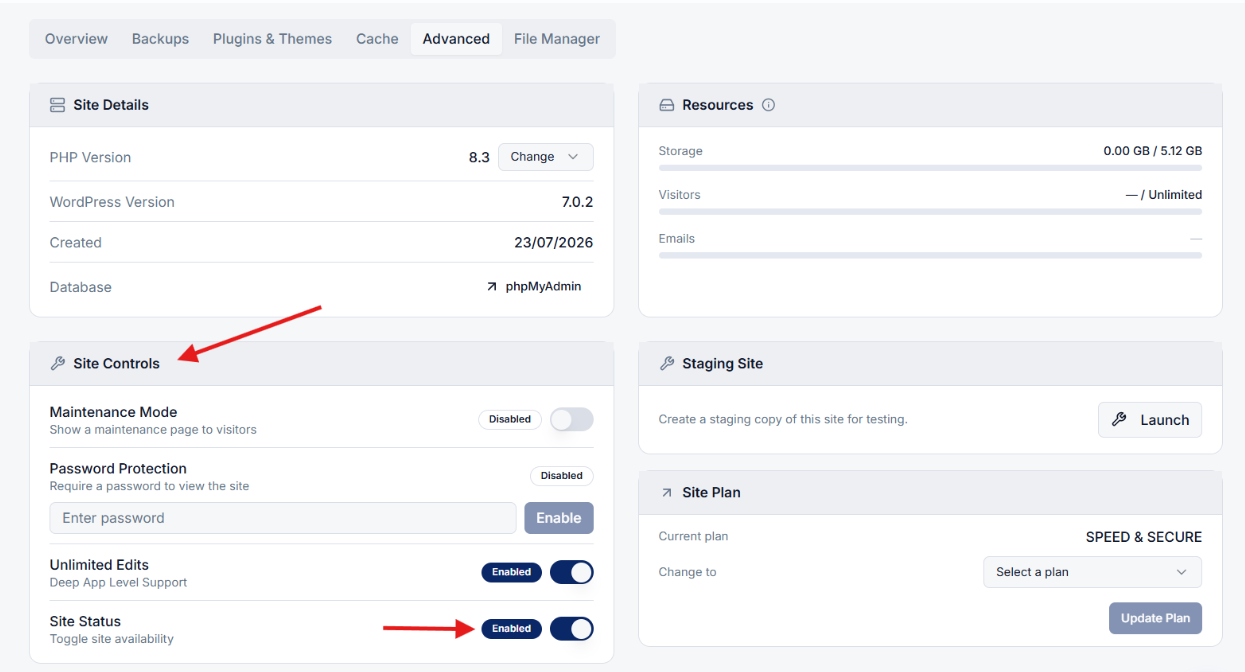
Once disabled, visitors to the site will see a 480 Temporarily Unavailable notice that the site has been disabled.

When a site is in the disabled state, it will not perform any of its normal functions. Access to wp-admin is also disabled in this state. Any plugin(s) or other custom code on the site will not run when the site is disabled.
Enabling a Site
To reactivate a previously disabled site, go to the site's settings in app.bionicwp.com, navigate to the Advanced tab, and toggle the Site Status switch to re-enable the site.
Enabling a site will take effect immediately. If your site doesn’t load after this step, you may need to clear your browser’s cache.
If you instead wish to temporarily hide the site from visitors, you can enable maintenance mode (or any similar plugin) to it.
Maintenance Mode
Enabling Maintenance Mode will activate the Maintenance Mode plugin on your website. Your site’s WP Admin will remain accessible to you, but visitors to your site will be greeted with a Maintenance Mode screen, preventing them from using the site while you carry out any necessary updates or changes behind the scenes.