
How to Export Sites List from Your BionicWP Account
Overview
BionicWP allows you to export a list of your sites into a CSV file directly from the dashboard. This is helpful for reporting, audits, sharing site inventories with your team, or maintaining offline records.
Where to Find the Export Option
The Export to CSV button is located on the Sites List page in your BionicWP dashboard.
This page displays all sites associated with your account.
Steps to Export Your Sites
Log in to your BionicWP dashboard.
Navigate to the Sites page.
Click the Export to CSV button on the Sites List page.
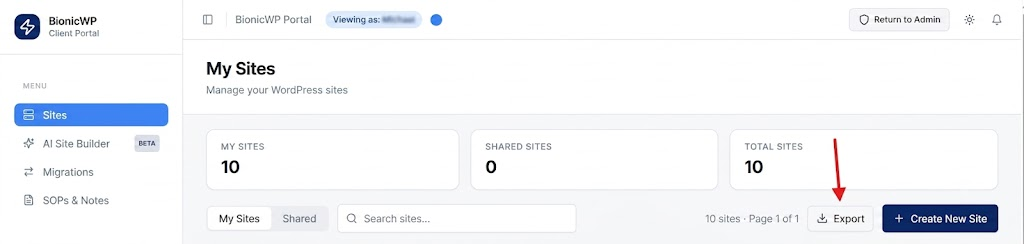
A CSV file will automatically download to your computer.
Common Use Cases
Client or internal reporting
Site inventory management
Audits and reviews
Sharing site data with stakeholders or teams
Troubleshooting
Export button not visible
Ensure you have the correct permissions to access and manage sites.CSV not downloading
Refresh the page and try again, or check if your browser is blocking downloads.Missing sites in the export
Clear any filters or search queries before exporting.