
How to Generate API Keys from Stripe for your Whitelable
Overview
To integrate Stripe with BionicWP (or any other platform requiring payment processing), you'll need your API keys. These keys allow secure communication between Stripe and the platform you're connecting to.
How It Works
Stripe provides two types of API keys:
Publishable Key – used on the front end (safe to expose in the browser)
Secret Key – used on the back end (keep this private)
You'll find both inside your Stripe Dashboard. If you're working in test mode, Stripe provides separate test keys you can use before going live. ( Please note, you'd need to delete and recreate the Whitelable in order to change the keys )
Step-by-Step Instructions
Log in to your Stripe account
https://dashboard.stripe.com/loginGo to Developers > API Keys
On the left-hand sidebar, click Developers
Then click API Keys
Locate your keys
Publishable Key will be visible immediately
Secret Key will be hidden — click Reveal live key token to display it
Please Create a "Standard Key" to use on your Whitelable platform, since our platform would need to interact with you Stripe account in order to create/update subscriptons and charge the customers.
Creating a Standard Key, please select "Powering an integration You Built"
Copy and store your keys securely
You’ll need to paste these into your integration settings inside BionicWP or another tool
Never share your Secret Key publicly
(Optional) Toggle to Test Mode if you’re just experimenting
Use the test keys for sandbox environments before switching to live
Once the keys are generated, please navigate to Billing > Revenue Recovery
Navigate to "Retries" and set up the retry settings as follows:
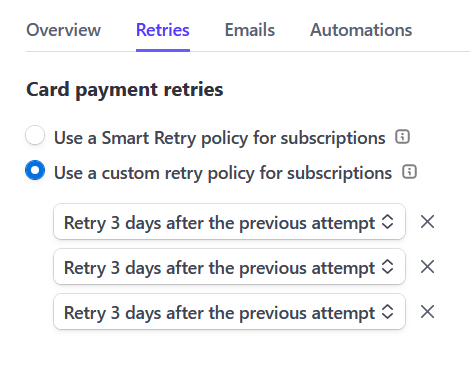
Once done, just add the keys to the platform and hit next!
Pro Tip: Rotate your Secret Key periodically if you’ve shared access with developers or connected multiple platforms. Stripe allows you to roll keys without breaking live transactions by adding and deleting keys one at a time.