
How to Use Access Sharing and Collaboration
Overview
BionicWP's collaboration feature allows you to securely share access to your websites with team members, developers, or clients. By assigning specific permissions, you can control who can view or manage your sites, facilitating efficient teamwork and streamlined workflows.
How It Works
The collaboration tool enables you to invite users to your BionicWP account, granting them access to designated sites with defined permissions. Collaborators can manage assigned sites without needing full access to your entire account, ensuring security and control over your digital assets.
Step-by-Step Instructions
Log into the BionicWP Dashboard
Navigate to app.bionicwp.com and sign in with your credentials.
Access the Collaboration Section
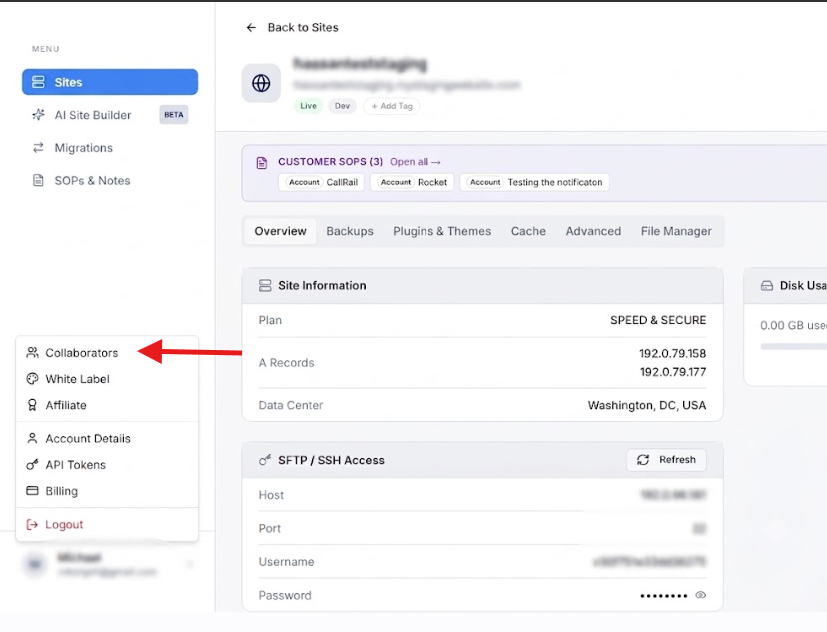
In the bottom left navigation menu, click on Collaborators.
Add a New Collaborator
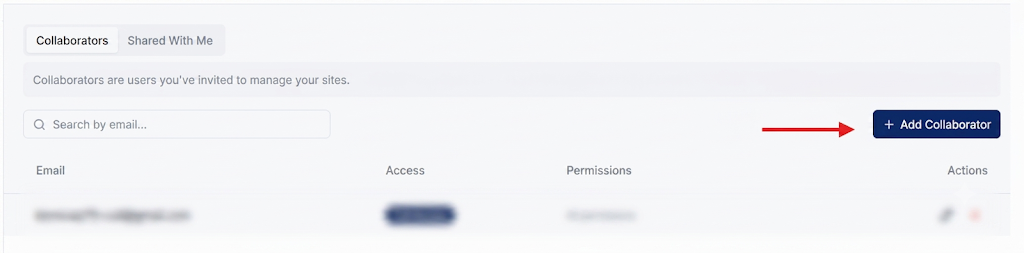
Click the + Add New Collaborator button.
Enter the collaborator's email address and the domain(s) you wish to grant access to.
Specify the permissions you want to assign (e.g., view-only, full access).
Send the Invitation
Click Send Invitation.
If the invitee already has a BionicWP account, they will see the site in their sites list automatically with your email as an identifier next to it.
If they do not have an account, they will receive an email with a link to create one.
Manage Collaborators
You can edit permissions or remove access at any time from the Collaboration section.
Pro Tip: Regularly review your list of collaborators to ensure that only authorized individuals have access to your sites. This practice helps maintain security and control over your digital assets.